The Quick Loot System lets you configure which items should be looted automatically when opening monster corpses.
Newer clients can use the built-in loot container settings, while Client 10 players can configure quick loot with in-game commands.
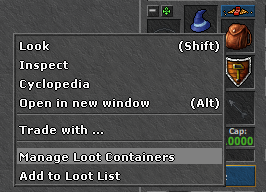
On newer clients, you do not need to follow the old command tutorial. Right-click any backpack and choose Manage Loot Containers.
You can also right-click an item and choose Add to Loot List.
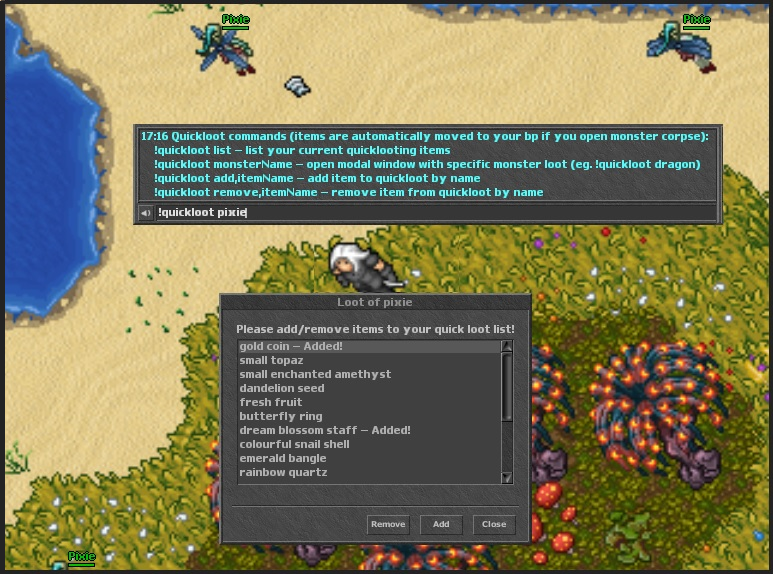
Client 10 players can use the following commands to manage quick loot. You can also type !quickloot in-game to display all available commands.
Use !quickloot monsterName in-game. A modal window will show items that can be looted from that monster.
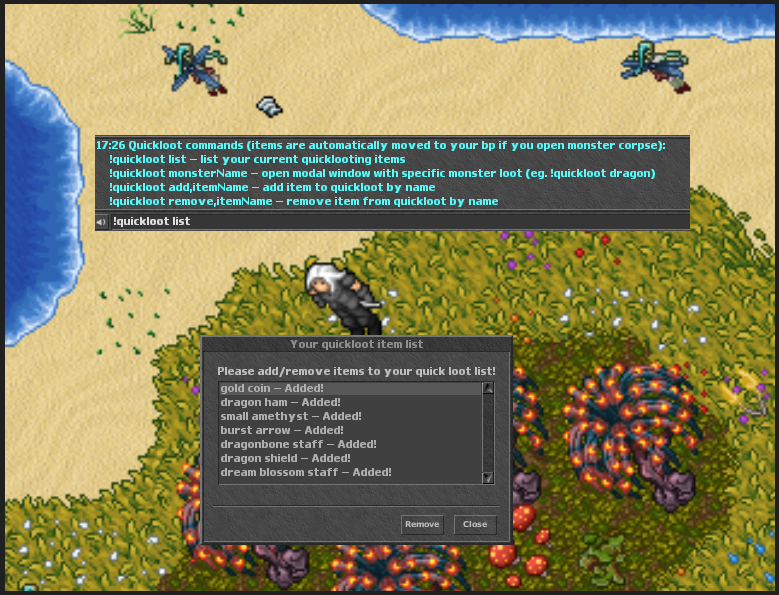
Use !quickloot list to open your current quick loot list. You can remove added items directly from the modal window.
Kill the selected monster and open the corpse. Items from your quick loot settings will be moved into your backpack automatically.
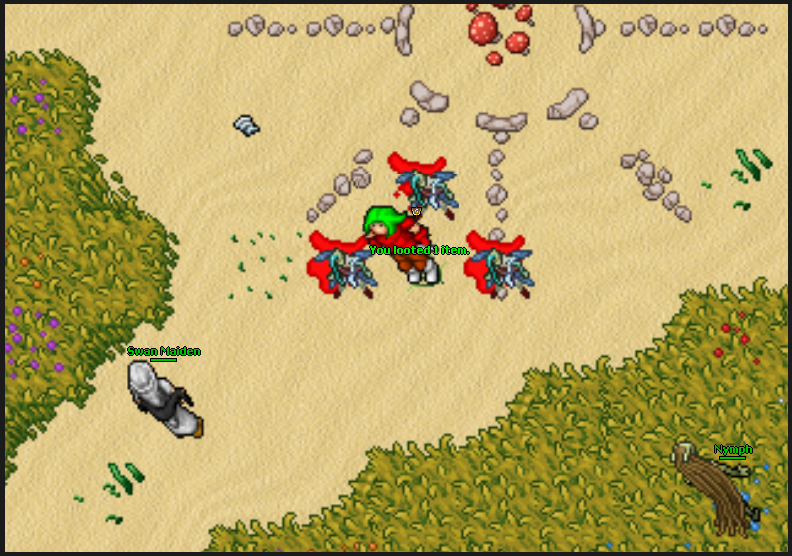
Make sure your backpack has enough space and your loot settings are configured correctly. If an item is not being looted, check whether you are using accepted loot or skipped loot mode.
For Client 10, item names must be typed correctly when using add or remove commands.
 Live Streamers



RAGE QUIT